Lighting Prompts Photorealistic: A Practical Kit (Soft, Hard, Window, Golden Hour)
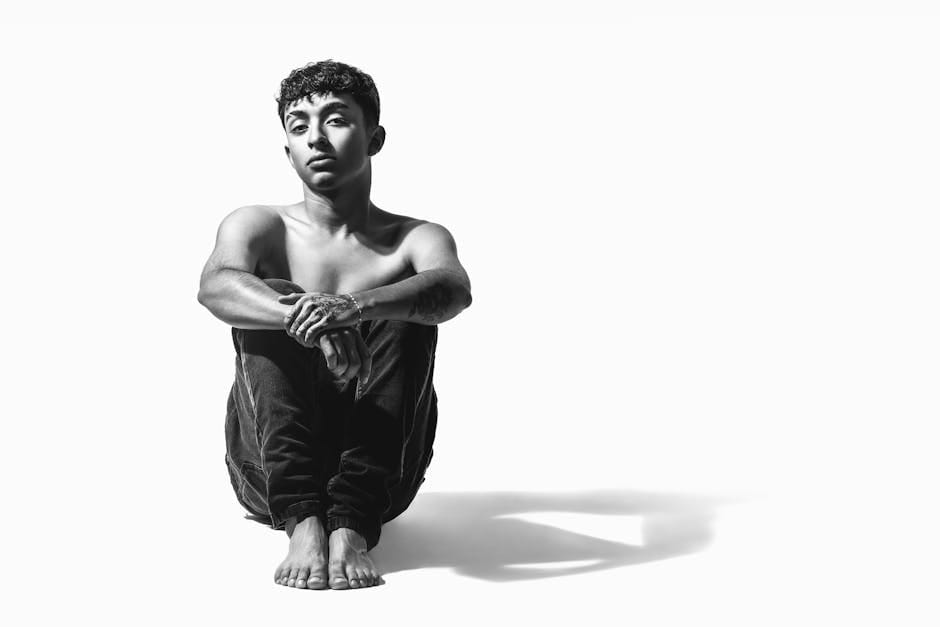
Lighting prompts photorealistic are the fastest way to fix “AI glow.” I learned this after a client batch where every image felt slightly “fake.” The subject was fine. The prompt was fine. The light was vague. The moment I locked light direction, the whole set snapped into realism.
Let’s keep it simple. Here’s a lighting kit you can copy/paste, plus what breaks if you overdo it. This is the exact checklist I use in current‑gen workflows.
Lighting prompts photorealistic: the 4‑part structure
I describe light in four pieces:
- Source: window / sun / softbox
- Direction: left / right / back / top
- Quality: soft / diffused / hard
- Result: gentle shadows / long shadows / high contrast
That’s enough. You don’t need 20 adjectives. And you definitely don’t need “cinematic” with no specifics.
The lighting kit (copy/paste)
Soft window light (natural, realistic)
- Use for: portraits, lifestyle, product
- Prompt snippet: “soft window light from the left, diffused, gentle shadows”
Overcast daylight (flat but believable)
- Use for: street scenes, documentary
- Prompt snippet: “overcast daylight, soft ambient light, low contrast”
Golden hour (warm, cinematic)
- Use for: outdoor portraits, landscape
- Prompt snippet: “golden hour sunlight, warm tones, long soft shadows”
Hard noon sun (harsh, real)
- Use for: street, documentary, summer scenes
- Prompt snippet: “harsh midday sun, strong shadows, high contrast”
Studio softbox (controlled)
- Use for: clean portraits, product shots
- Prompt snippet: “studio softbox key light, soft shadows, clean background”
Rim light (separation)
- Use for: cinematic portraits
- Prompt snippet: “rim light from behind, subtle edge highlight”
What breaks realism (don’t do this)
- Too many light sources (the model fakes it).
- “Cinematic lighting” with no specifics (vague = synthetic).
- Extreme bloom or glow (looks like CGI).
- Mixing warm + cool without direction (the image feels fake fast).
Quick test (10 minutes)
- Pick one subject and generate 4 versions: window light, overcast, golden hour, softbox.
- Compare realism. Which one feels most like a real photo?
- Use that lighting style as your default for that subject type.
What this looks like in practice
Try a simple founder portrait. If you leave light vague, you get the “AI glow.” Add “soft window light from the left, diffused, gentle shadows,” and suddenly the skin texture makes sense. Same subject, different light, different credibility.
In modern workflows, I lock light early and then iterate on subject details. It saves time and keeps the look consistent across a set.
Lighting prompt stack for consistent sets
If you’re generating a series (product shots, team headshots, brand assets), use a tiny “lighting stack” and keep it fixed:
- Base light: one source only (e.g., soft window light left)
- Shadow rule: gentle shadows (or strong, but pick one)
- Background rule: clean, neutral, no color cast
- Iteration rule: change subject details, not the light
This is boring, but it’s how you get consistency without 20 retries.
Why lighting works (boring but true)
Light shapes texture. Without a clear light source, the model invents one. If you want the formal definition, here’s a quick read on lighting. But you don’t need theory—you need a consistent prompt.
Related resources (internal)
Start with the full system here: Prompt Engineering for Image Models. If you want copy/paste prompts: 50 Photorealistic Prompt Templates.
Tools & references
Let’s make this practical
Pick one lighting style and run 5 tests today. If it improves realism, share this with a friend who’s still fighting “AI glow,” and connect with me on LinkedIn: Victor Freitas.